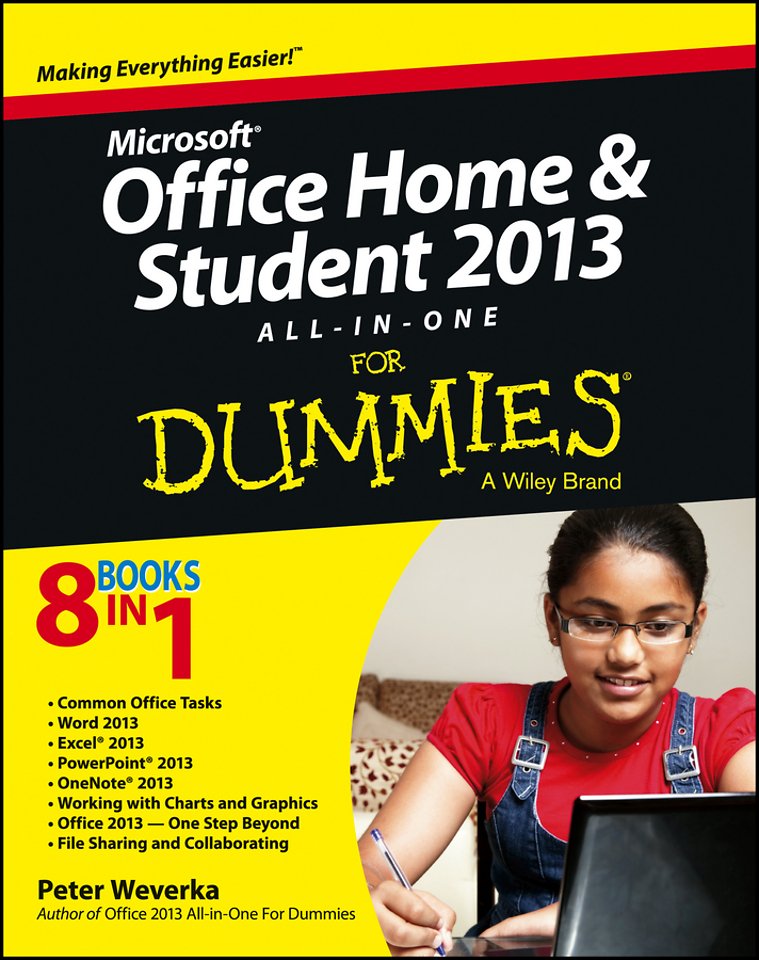
Office Home & Student 2013 All–in–One For Dummies
Samenvatting
The go–to reference for the new Office Home & Student 2013
The Home & Student version of Microsoft Office targets the home and education markets, covering the four applications most used outside the workplace: Word, Excel, PowerPoint, and OneNote. The minibooks in this essential All–in–One guide include real–world examples and projects that cover the new features and capabilities of Office 2013. Straightforward advice and beneficial projects help you to learn the basics of creating a resume in Word, establishing a home budget in Excel, developing a dynamic school presentation with PowerPoint, and taking notes in OneNote.
Targets home and school users of Office 2013, who primarily use Word, Excel, PowerPoint, and OneNote
Walks you through how to use Office 2013 for everyday projects, such as creating a cover letter in Word or reusable templates in Excel
Demonstrates how to jazz up a school presentation with PowerPoint
Provides you with straightforward instructions for taking notes in OneNote
Shares common Office 2010 tools and details the basics of the Office ribbon
Office Home & Student 2013 All–in–One For Dummies is an easy–to–understand guide to the essentials of Office 2013!
Specificaties
Inhoudsopgave
<p>Book I: Common Office Tasks 5</p>
<p>Chapter 1: Office Nuts and Bolts 7</p>
<p>Chapter 2: Wrestling with the Text 27</p>
<p>Chapter 3: Speed Techniques Worth Knowing About 45</p>
<p>Book II: Word 2013 53</p>
<p>Chapter 1: Speed Techniques for Using Word 55</p>
<p>Chapter 2: Laying Out Text and Pages 73</p>
<p>Chapter 3: Word Styles 97</p>
<p>Chapter 4: Constructing the Perfect Table 113</p>
<p>Chapter 5: Taking Advantage of the Proofing Tools 137</p>
<p>Chapter 6: Desktop Publishing with Word 157</p>
<p>Chapter 7: Getting Word s Help with Office Chores 175</p>
<p>Chapter 8: Tools for Reports and Scholarly Papers 195</p>
<p>Book III: Excel 2013 217</p>
<p>Chapter 1: Up and Running with Excel 219</p>
<p>Chapter 2: Refining Your Worksheet 237</p>
<p>Chapter 3: Formulas and Functions for Crunching Numbers 251</p>
<p>Chapter 4: Making a Worksheet Easier to Read and Understand 273</p>
<p>Chapter 5: Advanced Techniques for Analyzing Data 291</p>
<p>Book IV: PowerPoint 2013 303</p>
<p>Chapter 1: Getting Started in PowerPoint 305</p>
<p>Chapter 2: Fashioning a Look for Your Presentation 327</p>
<p>Chapter 3: Entering the Text 341</p>
<p>Chapter 4: Making Your Presentations Livelier 357</p>
<p>Chapter 5: Delivering a Presentation 373</p>
<p>Book V: OneNote 2013 395</p>
<p>Chapter 1: Up and Running with OneNote 397</p>
<p>Chapter 2: Taking Notes 409</p>
<p>Chapter 3: Finding and Organizing Your Notes 425</p>
<p>Book VI: Working with Charts and Graphics 433</p>
<p>Chapter 1: Creating a Chart 435</p>
<p>Chapter 2: Making a SmartArt Diagram 463</p>
<p>Chapter 3: Handling Graphics, Photos, and Clip Art 481</p>
<p>Chapter 4: Drawing and Manipulating Lines, Shapes, and Other Objects 499</p>
<p>Book VII: Office 2013 One Step Beyond 529</p>
<p>Chapter 1: Customizing an Office Program 531</p>
<p>Chapter 2: Ways of Distributing Your Work 545</p>
<p>Chapter 3: Automating Tasks with Macros 553</p>
<p>Chapter 4: Linking and Embedding in Compound Files 565</p>
<p>Book VIII: File Sharing and Collaborating 577</p>
<p>Chapter 1: Preparing to Use the Office Web Apps 579</p>
<p>Chapter 2: Using the Offi ce Web Apps 589</p>
<p>Chapter 3: Sharing and Collaborating 599</p>
<p>Index 609</p>